Wear OS in the simulator
A Wear OS APK is detected from its manifest (a required
android.hardware.type.watch feature) and runs on a round 454×454 watch
display. Configuration.isScreenRound() and the watch UI mode read as they
do on a watch, rotary sends the crown’s scroll events, and screenshots are
cropped to the circle. --launcher adds a Wear system UI around the app: a
watch face, the app launcher, the notification stream, the tiles and widgets
carousel, and quick settings.
compose-preview android-simulator wear.apk --launcher                 # the app, over a watch face
compose-preview android-simulator wear.apk --tile .MyTileService      # a tile in the carousel
compose-preview android-simulator --watchface face.apk                # a WFF watch face, nothing else
compose-preview android-simulator --watchface face.apk --install comp.apk   # face + complication app
compose-preview android-simulator phone.apk --pair wear.apk           # a phone and its watch
compose-preview android-simulator wear.apk --data-layer agent --control stdio  # the agent as the phone
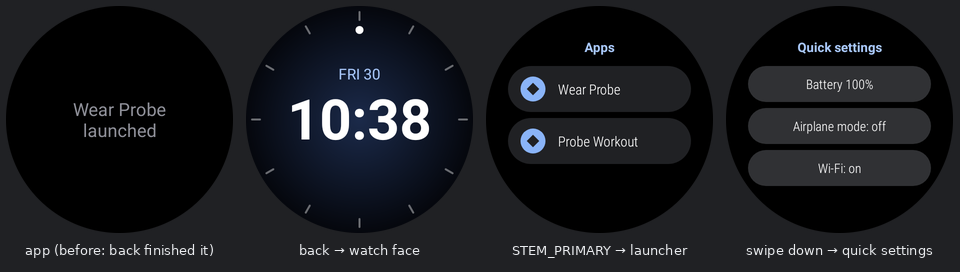
| On a watch | Goes to | Command |
|---|---|---|
| Back from the app’s root, or Home | the watch face | home |
| The side button | the launcher | key STEM_PRIMARY, launcher |
| Swipe up on the face | the notification stream | notifications {"op":"open"} |
| Swipe left or right on the face | the tiles and widgets carousel | tiles {"op":"next"} |
| Swipe down on the face | quick settings | quickSettings |
Tiles and Wear Widgets
The carousel holds what you add, with --tile <service> (repeatable),
tiles {"op":"add"}, or its own add page.
- Tiles are bound by
BIND_TILE_PROVIDERand called over their real AIDL: tile and resource requests, and the add / enter / leave / remove callbacks. They’re drawn by the protolayout tile renderer, which the CLI provides (apps don’t ship it). ALoadActionrequests the tile again with the clicked state, and aLaunchActionstarts its activity. - Wear Widgets (Glance Wear) are bound by
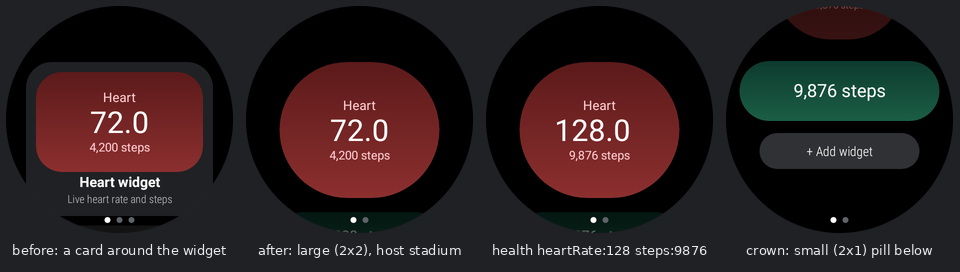
BIND_WIDGET_PROVIDER, asked for a Remote Compose document at their container’s size, and played with the Remote Compose player. They’re shown the way a watch shows them: just the provider’s preferred container — small (2×1) or large (2×2), a stadium on a round watch and a squircle on a square one — with no card or label.
Both read the watch’s simulated system data. health sets heart rate, steps,
distance, calories and floors, which tiles read through
PlatformHealthSources and widgets through Glance Wear’s HealthData.
→ {"cmd":"tiles","op":"add","component":".GoalsTileService"}
→ {"cmd":"health","heartRate":72,"steps":5400,"stepGoal":8000}
→ {"cmd":"screenshot","path":"tile.png"}

Watch faces
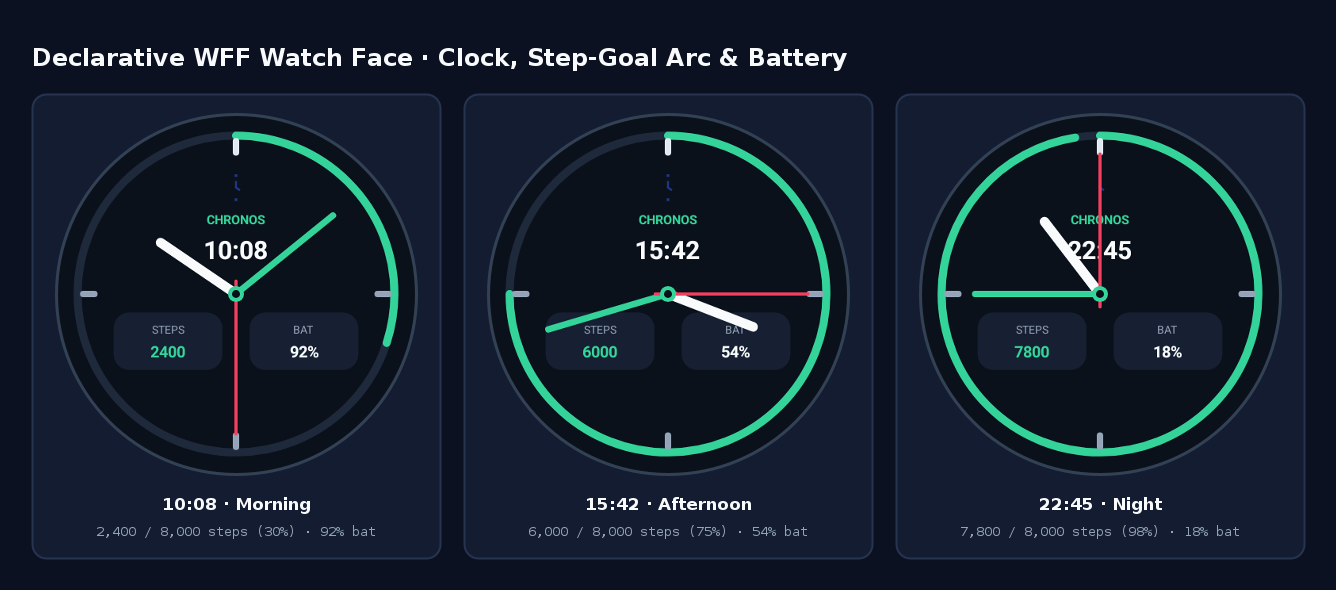
--watchface <apk | package | component> (or watchface {"op":"set"})
replaces the demo face with one of two kinds:
- AndroidX watch faces (
WatchFaceService,ListenableWatchFaceService) are bound through the library’sWatchFaceControlServiceand drawn headless, interactive or ambient. This is the same path Wear’s face editor and Android Studio’s previews use. - Declarative Watch Faces in the Watch Face Format (WFF,
watch_face_info.xml) run one of two ways:- Google’s runtime. When
DeclarativeWatchFaceRuntime.apkis cached, the simulator hosts the WFF package in Google’s own runtime. The APK is never redistributed:compose-preview android-simulator dwf-runtime pull --from-adbcopies it from your own Wear emulator, anddwf-runtime install <apk>registers a local copy. - The built-in compiler. Without the runtime (or with
--dwf-runtime
none
), the face’s XML is compiled to Remote Compose and played in-process.
Either way,
[STEP_PERCENT],[BATTERY_PERCENT],[HEART_RATE],[WEATHER.*],[ACCELEROMETER_ANGLE_*],[CONFIGURATION.*]and[COMPLICATION.*]follow the simulated watch state. - Google’s runtime. When
The clock, health, battery, weather and accel commands set that
state, and ambient, tilt and palm move the screen between interactive,
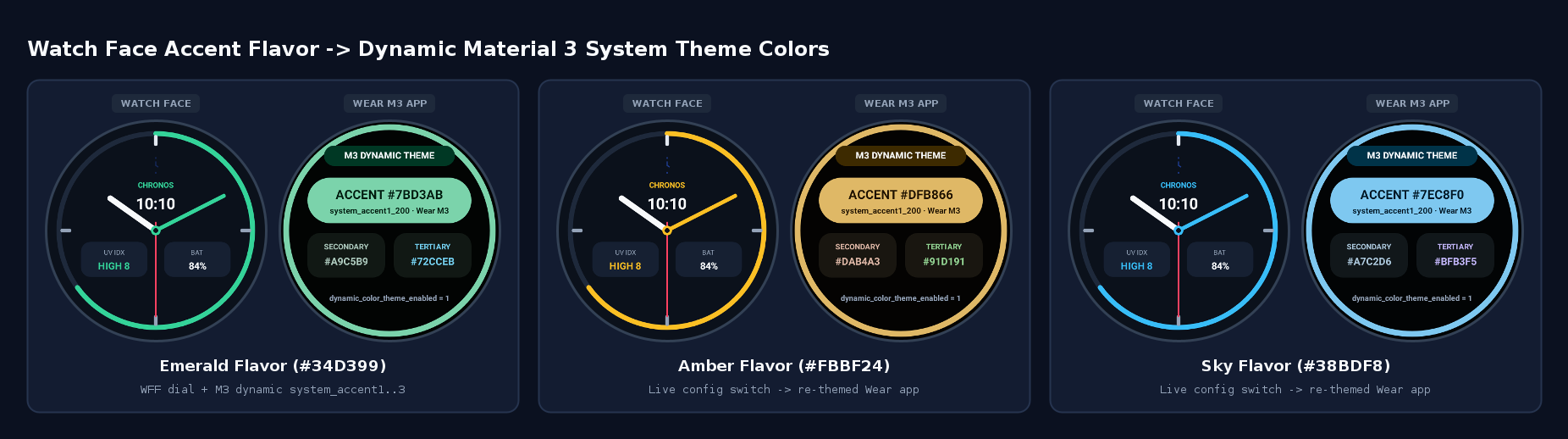
ambient and off. watchface {"op":"config"} sets user styles and
ColorConfiguration options. Flavors switch too.
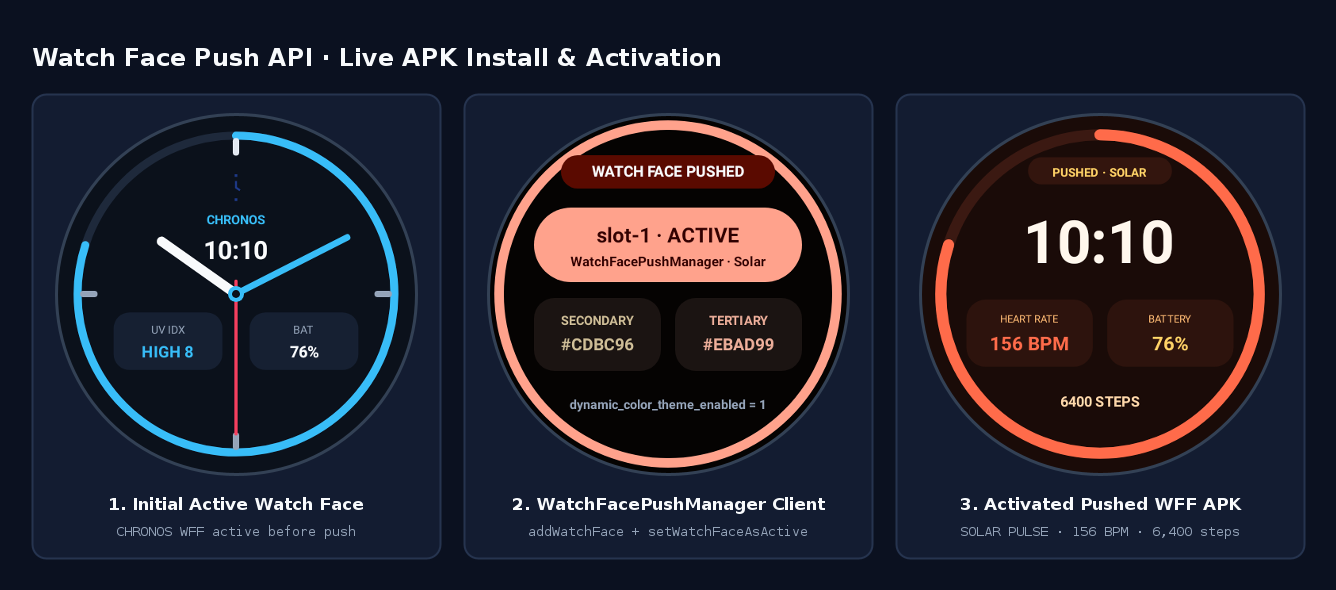
Watch Face Push. An app calling WatchFacePushManager’s addWatchFace,
updateWatchFace, listWatchFaces, removeWatchFace or
setWatchFaceAsActive gets a simulated Watch Face Push service. The agent can
push faces too, with watchface {"op":"push"}. Pushed WFF APKs are installed
and activated live.
Dynamic theme colors. By default (--theme-from-watchface), the active
face’s accent palette becomes the system’s Material 3 dynamic colors, so Wear
apps, tiles and Glance widgets that use dynamicColorScheme(context) follow
the face.
Complications
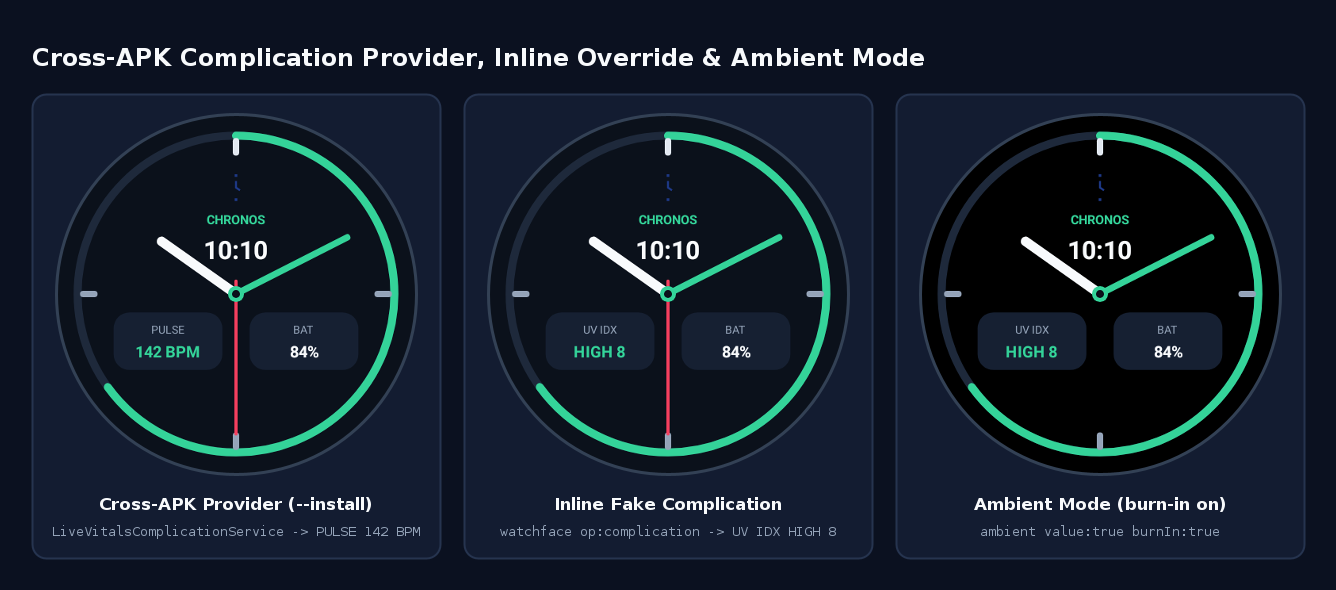
watchface {"op":"complication"} fills a slot from a
ComplicationDataSourceService in one of these places:
- in the same APK as the face;
- in another APK installed beside it with
--install <comp.apk>. TheComplicationDatacrosses between the two simulator JVMs as real parcels.
Without a component, the command fills the slot with an inline fake
complication (type, text, title, value, min, max), so you can test
a face’s slots without writing a data source. Timelines resolve against the
simulated clock, and watchface {"op":"tap"} fires a complication’s
tapAction.
→ {"cmd":"watchface","op":"complication","slot":0,"component":"com.example.comp/.StepsDataSource"}
→ {"cmd":"watchface","op":"complication","slot":1,"type":"RANGED_VALUE","value":62,"min":0,"max":100,"text":"62%"}
→ {"cmd":"watchface","op":"tap","slot":0}
For repeatable watch face checks, --scenario replays clock, health,
battery, weather, ambient and tap steps headlessly. It asserts on the frame
(changedFrom, litPixelRatio, regionColor) and on the watch face’s
status, then writes report.json and exits 2 on failure.
Notifications, ongoing activities and ambient
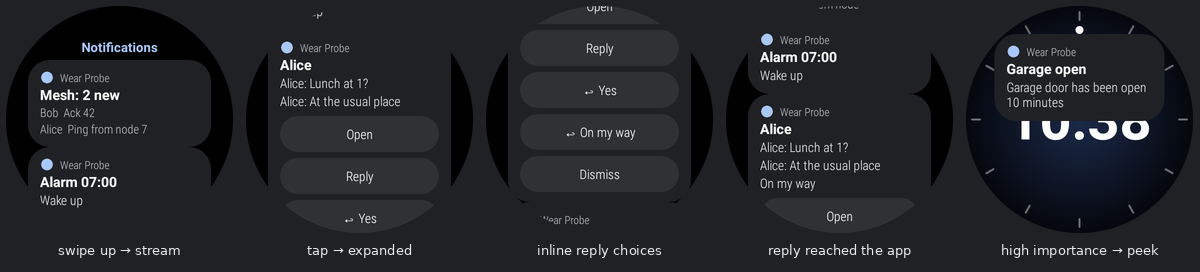
- The notification stream. Notifications are drawn the way Wear draws them
from their extras: title, text,
MessagingStyle, big picture, andWearableExtenderactions and reply choices. A high-importance post peeks over the face. - Ongoing activities (
androidx.wear.ongoing) appear as the face’s chip and as the launcher’s first rows, with their timers on the simulated clock. - Ambient mode.
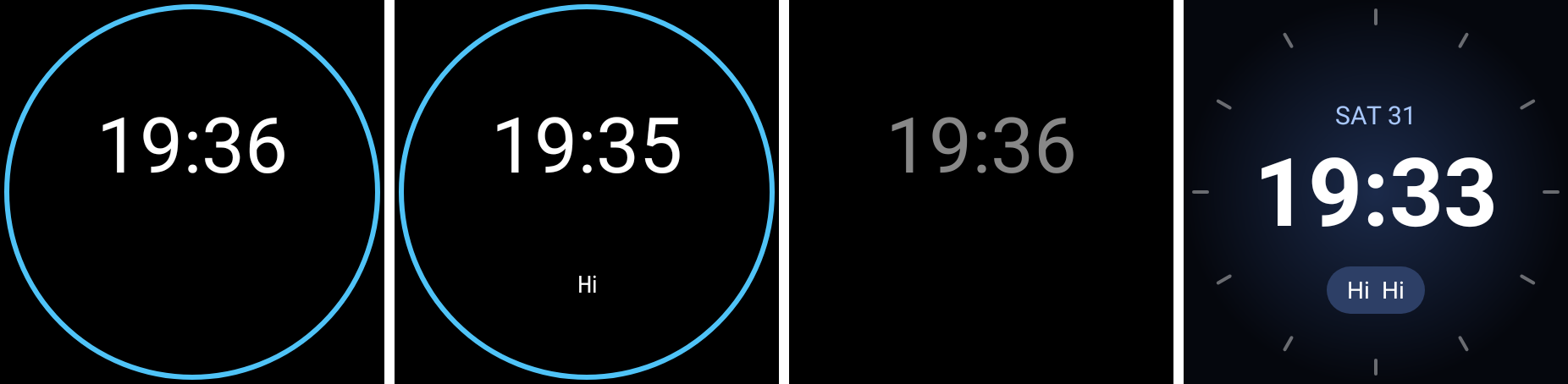
AmbientLifecycleObserver, the legacyAmbientModeSupport, Horologist’sAmbientAwareand Wear Compose’srememberAmbientModeManager()all getonEnterAmbient,onUpdateAmbientandonExitAmbient. An app that doesn’t support ambient is stopped and restarted as it would be on a watch.
Data Layer pairing
--pair <watch.apk> runs the watch app in a second simulator and connects the
two apps with a simulated Wearable Data Layer. DataClient,
MessageClient, NodeClient, CapabilityClient and ChannelClient answer
from the simulator instead of Play services. Messages, requests, data items,
assets, capabilities and channel streams cross between the apps and reach
their live listeners and manifest WearableListenerServices.
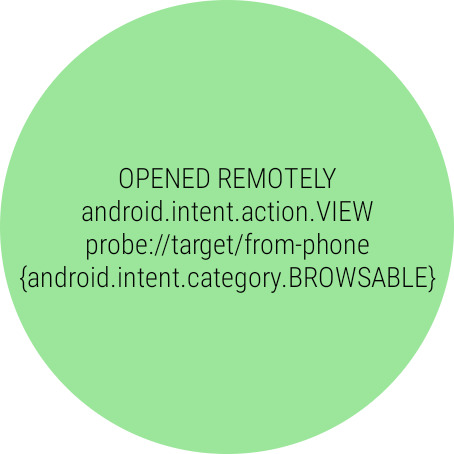
Each side is also a CompanionDeviceManager association. These work across
the pair too:
RemoteActivityHelper, including its availability status;- Horologist’s
DataLayerAppHelper; - on the watch:
RemoteAuthClient,BridgingManagerandPhoneTypeHelper.
With --control stdio, "device":"watch" sends a command to the watch, every
line says which device it came from, and each crossing is a datalayer event.
The agent as the peer. --data-layer agent needs no second app: the
control channel plays the other device. Everything the app sends arrives as a
datalayer send event, decoded as text or a DataMap when it can be. The
agent answers with dataLayer actions: connect, disconnect,
capabilities, put / delete, message / request, reply, and the
channel operations. You can test a watch app’s sync, error and
disconnected-phone paths without building the phone app.
→ {"cmd":"dataLayer","action":"connect","capabilities":["verify_remote_app"]}
← {"event":"datalayer","kind":"send","type":"message","path":"/start","requestId":4,"text":"…"}
→ {"cmd":"dataLayer","action":"reply","requestId":4,"text":"ok"}
→ {"cmd":"dataLayer","action":"put","path":"/settings","dataMap":{"units":"metric"}}
Wear gaps
| Area | Gap |
|---|---|
| Watch faces | AndroidX GlesRenderer faces don’t run (Robolectric has no EGL); CanvasRenderer faces do. The on-watch face editor UI isn’t drawn: watchface {"op":"config"} sets options directly. |
| Declarative faces | Running Google’s own runtime needs your copy of DeclarativeWatchFaceRuntime.apk, pulled from a Wear emulator. The built-in compiler approximates the runtime, so it isn’t pixel-identical. scripts/dwf-diff.py renders a face both ways side by side when that matters. |
| Tiles | A tile’s TileUpdateRequester isn’t wired to the carousel: tiles {"op":"refresh"} requests it again. |
| Ambient | Ambient reaches the app, but nothing enforces it. The system doesn’t dim, shift for burn-in or cap the frame rate. Ambient offload and auto-resume are accepted and ignored, and AmbientTransitionListener isn’t called. |
| Paired phone | The phone’s bridged notifications and launcher entries aren’t shown on the watch. Both apps are always running, so delivery that starts a stopped app isn’t exercised. |
| Data Layer fidelity | getCapability leaves out the local node, FILTER_REACHABLE is ignored, and onPeerConnected isn’t delivered. ChannelClient has no flow control. Listeners always run on the main thread. |
| Data Layer APIs | The deprecated GoogleApiClient APIs (Wearable.DataApi, MessageApi, …) aren’t simulated. R8-minified builds rename the clients the simulator matches by name, so use a debug build. |
| Wear SDK | Only RemoteInteractionsManager and Watch Face Push are simulated: Sdk.getWearManager returns null for any other service. |
| Without pairing | With neither --pair nor --data-layer agent, the Wearable clients report API_UNAVAILABLE. |
The full design notes are in
SIMULATOR_WEAR_LAUNCHER.md,
SIMULATOR_WEAR_WATCHFACE_SCENARIOS.md and
SIMULATOR_DATALAYER.md.